Computing and Graphing in R
Looking ahead
Objectives
- Create an RScript, add and run lines of code, and save it.
- Understand the difference between running code from the console versus an RScript, and when to use each.
- Run code by (a) ctrl+enter, (b) highlighting multiple lines and running all, (c) the “Run” button.
- Use
makeFun()to define a function andplotFun()to plot one. - Evaluate a previously defined function at a given input.
- Use
plotPoints()to graph data from a dataset. - Understand common R error messages to help debug your code.
Getting Started
- Log in to
posit.cloud. - Open the Math 141 Fall 2026 Base Workspace.
1. RScripts
Objective. Create an RScript, add and run lines of code, and save it.
Creating and saving an RScript.
- Choose
FileNew FileR Script. An empty RScript opens in the top left pane. - Type one command per line.
- Run each line with
Ctrl+Enter(section 3). - Press
Ctrl+S, type a name such asLesson 2, and clickSave. The file appears in theFilestab asLesson 2.R. - Press
Ctrl+Sagain after every change. RStudio shows the name of an unsaved RScript in red on its tab.
Commenting a script. R ignores the rest of a line after the character #.
Example 1
Two numbers are defined by
Create an RScript named Lesson 2 that computes , , and , and save it.
ShowHide solution
Choose File New File R Script, then type:
# Math 141 - Lesson 2 - Computing and Graphing in R
a = cos(4*pi) * 2^(1/3)
b = log(4)^3 + 3^exp(1)
b/a
Highlight the four lines and press Ctrl+Enter. R skips the comment line and stores a and b in the Environment. The last line prints [1] 17.84016, which gives . Save the file with Ctrl+S.
Example 2
A runner covers 26.2 miles in 3.5 hours. Create and save an RScript named Speed that stores the distance and the time and computes the average speed in miles per hour.
ShowHide solution
Choose File New File R Script, then type a comment line and one command per line:
# Average speed in miles per hour
distance = 26.2
time = 3.5
distance/time
Put the cursor on the first line and press Ctrl+Enter four times, once per line. The two assignment lines store distance and time in the Environment, and the last line prints [1] 7.485714, an average speed of about 7.486 miles per hour. Press Ctrl+S, type Speed, and click Save. The Files tab then lists Speed.R.
RScript download from Posit Cloud.
- Open the
Filestab at the bottom right and tick the box beside the.Rfile. - Click the gear icon labeled
More, thenExport, thenDownload.
Next: 2. Console and RScriptLesson map
2. Console and RScript
Objective. Understand the difference between running code from the console versus an RScript, and when to use each.
A line gives the same result whether it runs from the Console or from an RScript (both defined on the Lesson 1 sheet, section 1). In both cases R prints the output, when there is one, in the Console. Only the RScript saves its lines in a file.
Console. Use the Console for a one-off calculation, a help page such as ?plotFun, or a quick look at a dataset. Lines typed there are kept in the History and in no file.
RScript. Use the RScript for homework, class work, and every line worth running again. The saved .R file is the record of the work. Submit the .R file to Gradescope.
Example 3
Choose the Console or an RScript for each task.
- (a) Open the help page for
plotFun. - (b) Write the lines for a homework problem that goes to Gradescope.
- (c) Check the value of once.
ShowHide solution
- (a) The Console, because
?plotFunis a one-off look at a help page. - (b) An RScript, because the homework lines must be saved and submitted as the
.Rfile. - (c) The Console, because
2^10is a one-off calculation. The line prints[1] 1024.
Example 4
Two lines typed in the Console compute the area of a circle of radius 3:
r = 3
pi*r^2
Keep the two lines so that they can run again in a later session.
ShowHide solution
The Console keeps its lines only in the History, and an RScript keeps its lines in a file. Open a new RScript with File New File R Script. In the History pane, select the two lines and click To Source, which copies them into the open RScript. Save the RScript with Ctrl+S. In a later session, the two lines run from the RScript store r and print [1] 28.27433, the area .
Next: 3. Ways to Run CodeLesson map
3. Ways to Run Code
Objective. Run code by (a) ctrl+enter, (b) highlighting multiple lines and running all, (c) the “Run” button.
- One line. Put the cursor anywhere on the line and press
Ctrl+Enter. The cursor then moves to the next line. PressCtrl+Enteragain to run the next line. - Several lines. Highlight the lines, then press
Ctrl+Enter. To run the whole script, highlight it all withCtrl+Afirst. - Run button. Click
Runon the RScript pane’s toolbar. The button runs the line the cursor is on, or the highlighted lines.
Example 5
An RScript contains three lines:
w = 12
h = 5
w*h
Run the lines one at a time.
ShowHide solution
Put the cursor on the line w = 12 and press Ctrl+Enter. R stores w, and the cursor moves to h = 5. Press Ctrl+Enter again to store h, then once more to run w*h, which prints [1] 60, because .
Example 6
An RScript contains the two lines r = 3 and pi*r^2. Run both lines at once, first with the keyboard and then with the Run button.
ShowHide solution
Press Ctrl+A to highlight the whole script, then press Ctrl+Enter. R runs the lines in order, and the Console prints [1] 28.27433. With the lines still highlighted, click Run on the RScript pane’s toolbar. R runs the same two lines and prints the same result.
Next: 4. Function Definitions and PlotsLesson map
4. Function Definitions and Plots
Objective. Use makeFun() to define a function and plotFun() to plot one.
Take . Its name is , its input is , its output is , and its formula is .
The functions makeFun, plotFun, and plotPoints each take a tilde expression, with the output to the left of the ~ and the input to the right. For makeFun and plotFun, the output is a formula such as 3*x + 2. The ~ key sits above the Tab key.
| Task | Pattern | Example |
|---|---|---|
| Define a function | name = makeFun(formula ~ input) | f = makeFun(3*x + 2 ~ x) |
| Plot a named function | plotFun(name(x) ~ x) | plotFun(f(x) ~ x) |
| Plot a formula directly | plotFun(formula ~ x) | plotFun(3*x + 2 ~ x) |
Name the function with makeFun first when it will be evaluated or plotted more than once.
Naming a function. The naming rules for values in the Lesson 1 sheet, section 3, apply to functions too. Case sensitivity and the reuse of a name work the same way. In the Environment, the Functions heading sits below the Values heading and lists each function.
Options follow the tilde expression inside the parentheses. Each is written name = value, with a comma before it:
plotFun(x^2 ~ x, xlim = c(-5, 5), col = "red")
An option left out takes its default value. In xlim = c(-5, 5), the vector c(-5, 5) gives the two ends of the range.
| Option | Meaning | Example |
|---|---|---|
xlim | the x range shown | xlim = c(-5, 5) |
ylim | the y range shown | ylim = c(0, 20) |
col | the curve color | col = "red" |
lwd | the line width | lwd = 3 |
lty | the line type (5 is long dashes) | lty = 5 |
add | drawing onto the existing plot | add = TRUE |
Adding to a plot. With add = TRUE, plotFun draws the new curve onto the existing plot. Without it, each plotFun call replaces the plot. The first plotting call never carries add = TRUE, because an empty Plots pane has no plot to add to.
The window of a plot is the range of values and values it shows. A curve added with add = TRUE keeps the window of the first plot and shows only the part that falls inside it. To fit every curve, set a wide enough window with xlim and ylim on the first call.
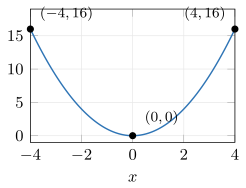
Example 7
Define the function
and plot it on .
ShowHide solution
Define with makeFun, then plot it with xlim set to the interval:
f = makeFun(x^2 ~ x)
plotFun(f(x) ~ x, xlim = c(-4, 4))
The plot is a parabola with its lowest point at . At both edges of the window the height is 16,
the points and . Without xlim, R picks its own window, here .
Example 8
For the functions
plot on in cyan. Then add to the same plot, with defined in terms of .
ShowHide solution
Define the three functions, with f(x) in place of in the formula for h, then plot and add :
g = makeFun(exp(sin(x)) ~ x)
f = makeFun(x^2 ~ x)
h = makeFun(4*cos(x - 4) + f(x) ~ x)
plotFun(g(x) ~ x, xlim = c(-6, 3),
col = "cyan")
plotFun(h(x) ~ x, add = TRUE)
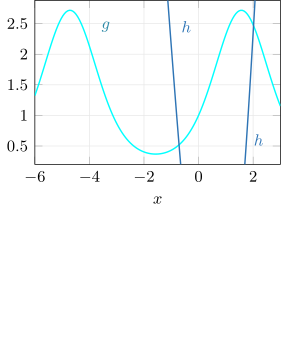
Because the call for sets no ylim, R fits the window to the values of . On , takes every value from to , and the values of run from to . The curve of appears only where its values fall inside that range, the two short blue pieces labeled .
Example 9
Without makeFun, plot the function
on and . Then add these two curves to the same plot, the first in red:
ShowHide solution
Plot the first function with xlim and ylim set, then add each curve with add = TRUE, writing as sin(x)^2:
plotFun(x^2 - 3*x + 3 ~ x,
xlim = c(-5, 5), ylim = c(-2, 10))
plotFun(cos(1/x) ~ x, add = TRUE,
col = "red")
plotFun(sin(x)^2 + cos(x)^2 ~ x,
add = TRUE)
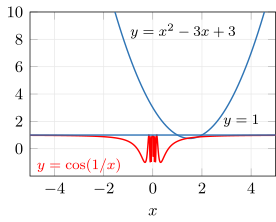
The second added curve is the flat line , because for every . The red curve oscillates between and faster and faster near .
Next: 5. Function EvaluationLesson map
5. Function Evaluation
Objective. Evaluate a previously defined function at a given input.
| Task | Pattern | Example |
|---|---|---|
| Evaluate a function | name(input) | f(9) |
The input can be a calculation as well as a number. To evaluate at , type f(exp(1)), because R has no stored name e. To evaluate at , type f(pi).
Inputs with no output. An input at which R prints NaN, or prints Inf because of a division by zero, is an input where the formula has no real output (Lesson 1 sheet, section 2, for both values). The one exception is an odd root of a negative number, at the end of this section. A homework answer at an input with no output is Not Applicable.
Example 10
Define the function
and evaluate it at , , and .
ShowHide solution
Define with makeFun, then evaluate it at each input:
g = makeFun(exp(sin(x)) ~ x)
g(0)
g(2)
g(5)
The last three lines print [1] 1, [1] 2.482578, and [1] 0.383305, which give , , and . The value agrees with the definition:
Example 11
For the functions
define in terms of and evaluate at .
ShowHide solution
Define , then with f(x) in place of as in Example 8, and evaluate:
f = makeFun(x^2 ~ x)
h = makeFun(4*cos(x - 4) + f(x) ~ x)
h(3)
The last line prints [1] 11.16121, which gives .
Example 12
Define the function
and evaluate it at and .
ShowHide solution
Define , then evaluate it with exp(1) for and pi for :
k = makeFun(x^2 + 3*x - 1 ~ x)
k(exp(1))
k(pi)
The last two lines print [1] 14.5439 and [1] 18.29438. Rounded to three decimal places, the values are and .
Example 13
Define the function
in R and evaluate it at , , and .
ShowHide solution
Define , then evaluate it at each input:
> p = makeFun(sqrt(x)/(x - 4) ~ x)
> p(9)
[1] 0.6
> p(4)
[1] Inf
> p(-1)
[1] NaN
Warning message:
In sqrt(x) : NaNs produced
The first value is exact, . The value is undefined, because the denominator is , and R prints Inf because the numerator is . The value is undefined, because has no real square root, and R prints NaN. As homework answers, and are Not Applicable.
Odd roots of negative inputs. R returns NaN for an odd root of a negative input written as a fractional power, although that root is a real number (Lesson 1 sheet, section 2). A plot of x^(1/3) shows no curve left of zero.
Next: 6. Graphs of DataLesson map
6. Graphs of Data
Objective. Use plotPoints() to graph data from a dataset.
| Task | Pattern | Example |
|---|---|---|
| Plot typed-in data | plotPoints(output ~ input) | plotPoints(y ~ x) |
| Plot a stored dataset | plotPoints(output ~ input, data = name) | plotPoints(Average ~ Year, data = MaunaLoaCO2) |
| Look up a command or dataset | ?name | ?MaunaLoaCO2 |
| List a dataset’s columns | names(name) | names(MaunaLoaCO2) |
| See a dataset’s first and last rows | head(name), tail(name) | head(MaunaLoaCO2) |
Typed-in data. The function c() makes a vector, a list of numbers in order. One vector lists the inputs and one lists the outputs:
x = c(1, 5, 4)
y = c(4, 8, 11)
plotPoints(y ~ x)
The last line plots , , and . The first entries of x and y, 1 and 4, make the first point, the second entries make the second point, and the third entries make the third. The two vectors have to be the same length and in matching order.
Course datasets. The help page from ?MaunaLoaCO2 describes the data and its units. The tilde expression names columns of the dataset, and names(MaunaLoaCO2) lists the column names.
With the option data =, R finds the columns in that dataset. Without it, R looks for the names Average and Year in the Environment and stops with an error:
> plotPoints(Average ~ Year)
Error in eval(i, data, env) : object 'Average' not found
Lowest and highest values. The input of the lowest or highest point is the value on the horizontal axis directly below or above the point.
Exact lowest and highest values.
- Type
View(MaunaLoaCO2)in the Console. R opens the dataset as a table. - Click a column header. R sorts the rows by that column, smallest first.
- Click the header a second time. R sorts the rows largest first.
Options such as add = TRUE, ylim, and col work with plotPoints as they do with plotFun.
Example 14
Plot the points , , , , and . Add the line
in magenta, then add the points , , , and .
ShowHide solution
Store and plot the first points and add the line. Then store the second points under the new names x2 and y2, which leaves x and y unchanged, and add them:
x = c(0, 4, -3, 6, 1/2)
y = c(3, 10, 5, 1, 1/2)
plotPoints(y ~ x, ylim = c(-3, 11))
plotFun(3*x + 2 ~ x, add = TRUE,
col = "magenta")
x2 = c(0, 1, 2, 3)
y2 = c(4, 2, 0, -2)
plotPoints(y2 ~ x2, add = TRUE)
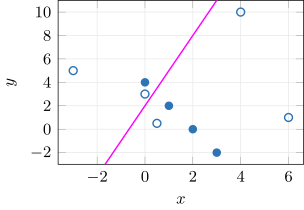
The figure draws the first five points as open circles and the second four as filled dots, with the line in magenta. R draws both sets with the same marker. The ylim on the first call makes room for . The default window, set from the first five points, stops just below and leaves that point out.
Example 15
The MaunaLoaCO2 dataset records the yearly average carbon dioxide level at Mauna Loa, Hawaii. Its columns include Year and Average. Plot Average against Year.
ShowHide solution
Open the help page, list the column names, and plot with data = naming the dataset:
?MaunaLoaCO2
names(MaunaLoaCO2)
plotPoints(Average ~ Year, data = MaunaLoaCO2)
On the help page, Average is in parts per million by volume. Each row of the dataset becomes one point. The tilde expression Average ~ Year puts the output Average on the vertical axis and the input Year on the horizontal axis. The plot has one point per year, and the points rise from each year to the next.
Next: 7. Common ErrorsLesson map
7. Common Errors
Objective. Understand common R error messages to help debug your code.
Wrong spelling or case. The functions plotFun and makeFun carry a capital in the middle. R reads plotfun as a different name from plotFun.
> plotfun(x^2 ~ x)
Error in plotfun(x^2 ~ x) : could not find function "plotfun"
Line never run. The message quotes the missing name. Run the line that stores the missing function or vector.
> plotFun(f(x) ~ x)
Error in f(x) : could not find function "f"
> plotPoints(y ~ x)
Error in eval(i, data, env) : object 'y' not found
Missing ~ x. R reports only that it cannot find the object x.
> makeFun(x^2)
Error: object 'x' not found
The fix is makeFun(x^2 ~ x).
Mismatched parentheses. The Lesson 1 sheet, section 1, covers the + prompt and Esc. Clicking a parenthesis in RStudio lights up its partner.
Tilde inside the formula. The message quotes the function that failed. The tilde separates the whole formula from the input.
> g = makeFun(sin(x ~ x))
Error in sin(x ~ x) : non-numeric argument to mathematical function
> g(9)
Error in g(9) : could not find function "g"
The failed line stores nothing. R then prints that it cannot find g. The fix is g = makeFun(sin(x) ~ x).
Troubleshooting.
- Read the message.
- Check the line named in the message for spelling, capitals, the tilde, and the parentheses.
- Clear the Environment with the broom in the Environment pane, then run the script again from the top.
- Choose
SessionRestart R, then run the script again from the top. - Clear stuck plots with the broom in the Plots pane.
- Choose
Relaunch projectfrom the...menu at the top right of Posit Cloud.
Example 16
Two lines of an RScript define the function
and evaluate it at . Both lines are highlighted and run:
> g = makeFun(sin(x) ~ x
+ g(9)
Error: unexpected symbol in:
"g = makeFun(sin(x) ~ x
g"
Identify the error.
ShowHide solution
The first line is missing its closing parenthesis. With the + prompt, R reads the second line as more of the first. Inside the open makeFun(, R cannot read the line past g and stops there. The fix is g = makeFun(sin(x) ~ x).
Example 17
Two plotFun lines are written for and on the same axes, the first in magenta and the second in cyan:
> plotFun(sin(x) ~ x, xlim = c(-3, 3), "magenta")
Error in multiple && !outer : invalid 'x' type in 'x && y'
> plotFun(cos(x) ~ x, TRUE, "cyan")
Error in !outer : invalid argument type
Identify the error.
ShowHide solution
The color and add options have no names. Without col = and add =, R hands "magenta", TRUE, and "cyan" to other options of plotFun. Each error comes from one of those options. Naming each option gives the two corrected commands:
plotFun(sin(x) ~ x, xlim = c(-3, 3), col = "magenta")
plotFun(cos(x) ~ x, add = TRUE, col = "cyan")
Example 18
Two lines of an RScript define and plot the function
j = makeFun(x^6 - x^3 ~ x)
plotFun(j(x) ~ x)
The plot never appears, and the Console shows this error:
Error in j(x) : could not find function "j"
Identify what happened.
ShowHide solution
The makeFun line was typed but never run. When the plotFun line ran, R found no function j in the Environment. Run the makeFun line first, then the plotFun line.